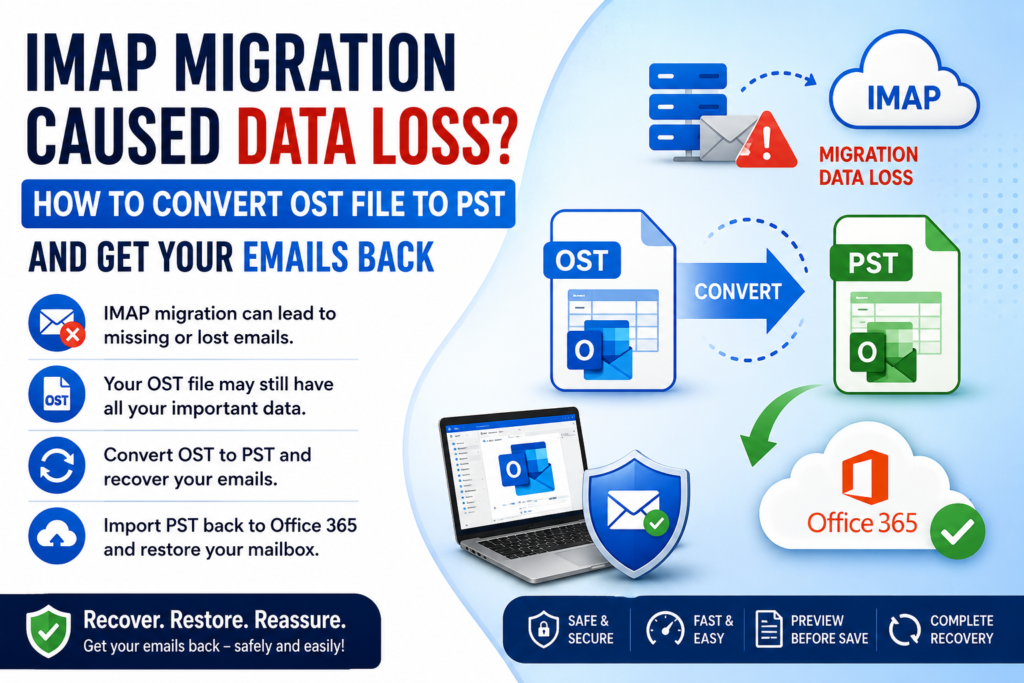

| 📩 User Query
“IMAP transformed my PST backup files into OST files, which Outlook 2024 cannot read… I had to exceed my storage limit, leading to the disappearance of my 24,000 emails.” |
Introduction
Here’s a situation nobody warns you about before a migration: you hit your storage cap mid-sync, the IMAP process chokes, and Outlook quietly swaps your readable PST archives into OST files it can’t open anymore. Then you search for your inbox and get nothing. 24,000 emails, gone.
Except they’re not gone. That’s the part worth knowing right away.
OST files store your full mailbox locally. The data is in there. What broke is Outlook’s ability to get into it — not the emails themselves. Once your account profile disconnected or the sync failed, Outlook lost its key to the file. The content stayed put.
So what do you actually do about it? That’s what this piece covers — why this happens with IMAP setups specifically, and three ways to convert your OST file to PST so Outlook can read everything again.
What Is an OST File — and Why Can’t Outlook Open It Directly?
Quick background, because the terminology trips people up.
A PST file (Personal Storage Table) is a standalone archive. You move it between machines, import it into any Outlook version, back it up to a USB drive. Outlook doesn’t need a server or active account to open it — the file is self-contained.
An OST file (Offline Storage Table) works differently. Outlook creates it automatically when you configure an Exchange, Microsoft 365, or IMAP account. It’s basically a cached copy of your server mailbox so you can keep working when you’re offline. The catch is that Outlook links the OST to your specific account profile. Lose that profile — whether through a migration failure, a deleted account, or a blown storage quota — and Outlook walls off the file. It won’t let you in, even though every email is sitting right there.
That’s why you’re in this spot. The IMAP migration pushed you over quota, the sync broke, the profile relationship snapped, and Outlook stopped recognizing the OST as something it’s allowed to open. Outlook 2016 onward won’t let you drag an OST in manually the way you can with a PST. The fix is pulling the data out of the OST and converting it into a PST format Outlook actually accepts.
Why IMAP Migrations Commonly Trigger This Problem
People run into this more than IT walkthroughs tend to acknowledge. Here’s what goes wrong:
When you add an IMAP account to Outlook, the app starts building an OST in the background. Normal. Expected. But IMAP migrations move a lot of data fast — old folders, archived threads, attachments — and if your mailbox quota gets hit before the sync finishes, Outlook doesn’t handle it gracefully.
Mid-sync failures can corrupt the cache. The OST ends up half-written, or Outlook flags it as out-of-sync with a server it can no longer reach because the account got suspended for being over-limit. Some users report Outlook stops showing folder contents. Others see the account disappear from the sidebar entirely. Either way, the OST file is still on disk, sitting in the AppData folder, full of mail.
The other common trigger: IT teams delete the original Exchange or IMAP profile during cleanup after a migration. No profile, no account credentials, no way for Outlook to authenticate the OST. The file is technically readable — just not through Outlook’s front door.
Both situations lead to the same place. You need to go around Outlook and export the OST to PST directly.
How to Convert OST File to PST — Three Practical Methods
Method 1: Use a Dedicated OST to PST Converter Tool (Fastest Option)
When the profile is gone or the sync broke badly, this is the only method that actually works. A converter reads the OST file structure directly — no active account, no server connection, no Outlook profile needed.
SysInfo OST to PST Converter is built specifically for this. You load the OST, it scans and previews the contents, you pick what to export, and it writes a PST file you can open in Outlook right away. It works on orphaned files, password-protected ones, and partially corrupted OSTs where Outlook won’t touch it.
For a mailbox with 24,000+ emails, this also matters: it handles large files without splitting or truncating. Emails, attachments, contacts, calendar entries, tasks — everything comes across.
You don’t need to reinstall Outlook, reconnect to the original server, or remember the account credentials. That’s the point of using a purpose-built tool instead of fighting with Outlook’s import settings.
Method 2: Export via Outlook (Only Works If the Profile Is Still Active)
If the account still works and Outlook can connect, the built-in export handles this without any third-party software.
Go to File, then Open & Export, then Import/Export. Pick “Export to a file,” choose Outlook Data File (.pst), select the folders you need (or the top-level account to grab everything), pick where to save it, and click Finish.
Clean and simple — when it works. The problem is that it won’t work if the profile broke during migration. If Outlook shows the account as disconnected, grayed out, or missing, this path won’t get you anywhere. The export option either won’t appear or will fail before it finishes.
If that’s your situation, skip to Method 1.
Method 3: Reconnect the Profile and Then Export
Worth trying if the original IMAP account is still live, just over quota.
- Free up space on the server side — delete large attachments, move old threads to local folders, or ask the admin to temporarily raise your limit.
- Once the account is under quota, go back into Outlook’s account settings, re-enter the IMAP credentials, and let it re-sync.
- After the sync completes and the account shows green, use the export steps from Method 2 to save everything to PST.
This only applies when the account itself is still active. If it’s been closed, migrated away, or the credentials no longer work, reconnecting isn’t an option and Method 1 is your path forward.
How to Open and Use the PST After Conversion
Once you’ve got the PST file, opening it in Outlook is quick.
- Go to File, then Open & Export, then Open Outlook Data File.
- Browse to where you saved the PST and open it.
- It shows up in the left navigation panel as a separate data file.
- Browse every folder, search across the full mailbox, and read any email as normal.
If you want to merge specific folders back into your active mailbox rather than keeping it as a separate archive, right-click the folder and use Move or Copy. Either way works fine — some people prefer keeping old mail in a separate PST just to avoid cluttering the active inbox.
What to Do About the Storage Limit That Started This
Getting the emails back solves the immediate problem. The storage issue that caused it is worth addressing so it doesn’t repeat.
- Set up a routine to archive mail to PST every few months before the mailbox gets heavy.
- Most IMAP providers show your current storage usage in the account portal — check it before any migration, not after.
- If you’re moving a large mailbox, ask your provider to raise the quota temporarily for the duration of the sync.
- For anything you want to keep long-term, PST archives are portable, account-independent, and openable on any machine. OST is fragile for storage.
Conclusion
When an IMAP migration hits a storage cap and breaks mid-sync, the OST file Outlook leaves behind isn’t empty — it’s full of your mail, just locked off from Outlook’s normal access.
Converting that OST to PST is the direct fix. If your account profile is still intact, Outlook’s built-in export handles it in a few clicks. If the profile broke, the account closed, or the sync corrupted the cache, a dedicated tool like SysInfo OST to PST Converter reads the file without needing any of that — and gives you a PST you can open right now.
Your 24,000 emails are almost certainly still in that file. This is how you get them back.
Frequently Asked Questions
| Q1. What is the best way to convert an OST file to PST?
It depends on whether your Outlook profile still works. If the original account is accessible and Outlook connects normally, use the built-in export: File → Import/Export → Export to Outlook Data File (.pst). If the profile is broken or the account is gone, that option won’t work. In that case, a dedicated converter like SysInfoTools OST to PST Converter reads the OST directly and exports a usable PST — no account access required. |
| Q2. Can I convert OST to PST without Outlook?
Yes. Dedicated OST to PST tools don’t need Outlook installed or an active mail profile. They read the OST file’s internal structure and write a PST independently. If your account no longer exists or Outlook won’t open the file, this is your only real option. |
| Q3. Is it possible to export a corrupted OST file to PST?
Usually, yes. OST corruption tends to be partial — Outlook may refuse to open the file, but large portions of the mailbox are still intact underneath. Most converter tools run a scan first and recover whatever is readable. Heavily corrupted files might lose some items, but the bulk of the mailbox typically comes through. It’s worth trying before assuming the data is gone. |